Guide
•
4 min read
•
Updated May 2026
Custom AI Templates
Create reusable note layouts, letters, summaries, and instructions that match your clinic, team, department, or study.
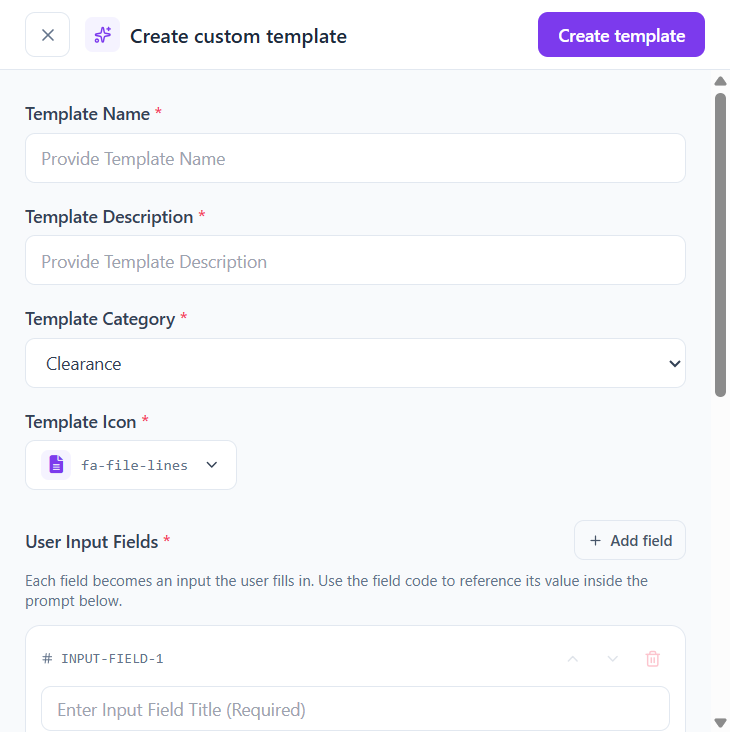
Build a template
- Open AI Templates and browse existing categories first — many common needs are already covered.
- Click Create custom template (the + button) to open the builder.
- Fill in name, description, category (Clearance / Clinical / Communication / Exemptions / General / Letters / Research), and an icon.
- Add user input fields. Each field can be an Input, Textarea, Select, Checkbox, or Radio, and can be marked Required or Optional.
- Write the Custom Prompt — your instructions to the AI. Reference any field with the
###input-field-1###tag shown next to it. - Save with Active toggled on so it appears in your template list, then test on a non-critical example before team-wide use.
Writing a good Custom Prompt
- Tell the AI who the audience is (clinician, patient, supervisor, insurer, etc.) and the desired tone.
- List required headings or sections explicitly so they always appear.
- Include things to avoid — speculation, jargon, unsupported claims, anything outside scope.
- Reference fields with the exact
###field-code###shown in the builder; missing fields fall back to empty.
Combine with Workplace
Templates define structure and instructions. Workplace adds professional context such as role, clinic name, address, department lines, disclaimers, and signature details — these are pulled into letters and patient-facing outputs automatically when a workplace is selected.